
Editing Toolkit with a custom chat implementation
Connect your own AI chat to CKEditor 5 with the Editing Toolkit. Your agent keeps its own tools, such as a lookup in your HR system. Coauthor gives it tools to edit the document and checks every edit against your editor. Compare then brings the result into the editor, where users review each change before it reaches the document.
In the video, a user asks the chat to update a document with data from another system. The agent edits the document through Coauthor, and the changes appear in the editor for the user to review.
- You run your own assistant next to the documents in your application, connected to your own systems.
- Users should approve each change in the editor.
- Build AI features that change content in small, precise edits, such as a reworded phrase or an updated figure, instead of replacing whole blocks.
- Your agent must keep what your editor needs, such as tables, links, and comments. If the agent rewrites the document HTML itself, your editor may drop markup it does not support, and the agent never learns about it.
For a chat that is built into the editor, see the AI Chat guide. To have CKEditor AI produce the changes instead of your own agent, see the Using with CKEditor AI guide.
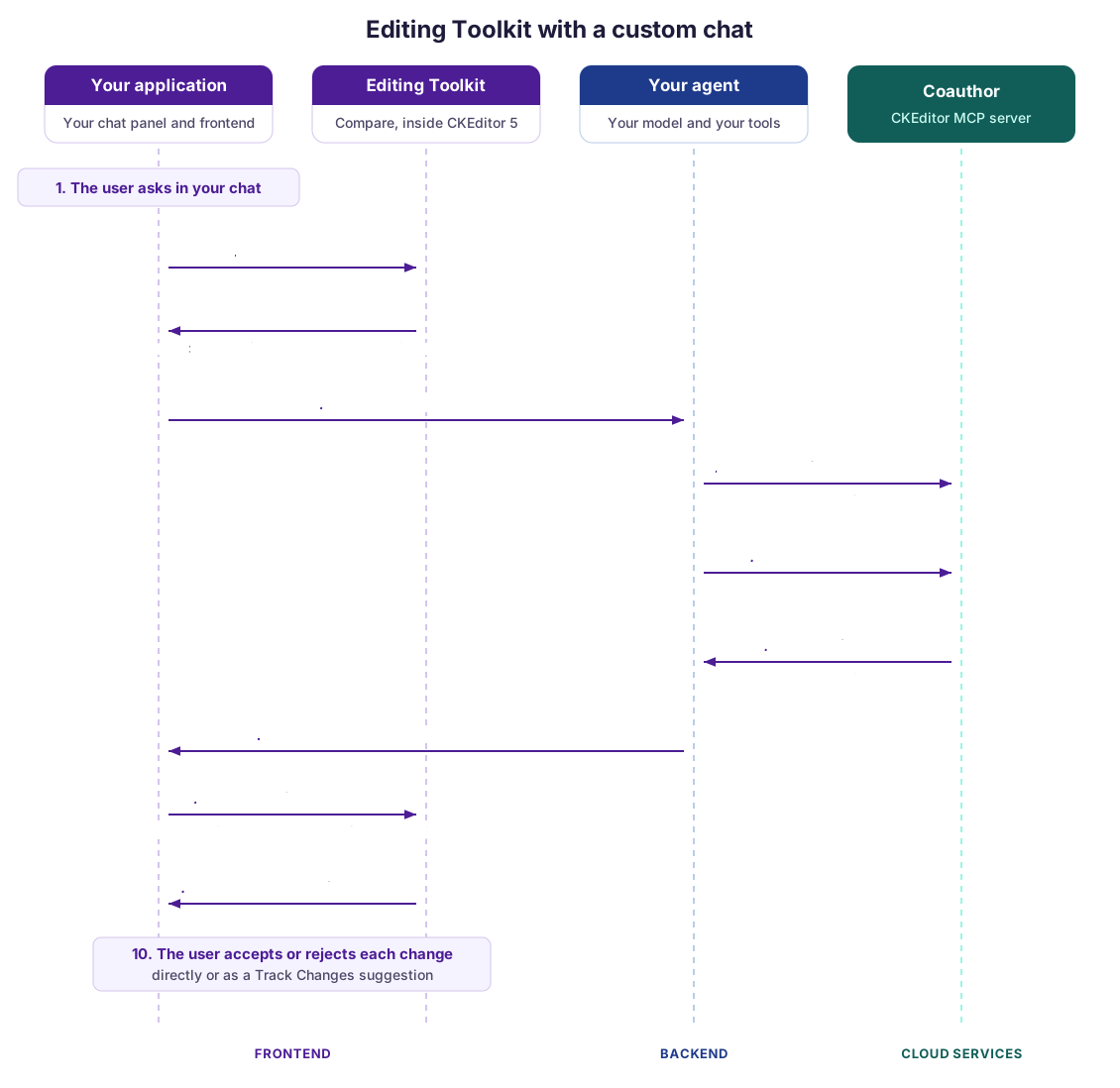
- The user asks for something in your chat.
- Your application takes a snapshot through the Editing Toolkit. It holds the document HTML, with IDs on structural elements, and the editor state needed to apply the differences later. The user can keep editing while the request runs.
- Your application sends the request and the snapshot to your agent.
- Your backend opens a Coauthor session on the snapshot and names your assistant as the actor of the session. Send the comments and suggestions of the document with the snapshot, so that the agent can see them.
- Your agent reads and edits the working copy of the session with Coauthor’s MCP tools, next to its own tools. Coauthor checks each edit on the server against your editor bundle, so the agent can fix what your editor would drop.
- When the agent is done, your backend reads the working copy and closes the session. The working copy holds only what your editor keeps.
- Your backend returns the new HTML to your application, together with the reply your chat shows.
- Your application passes the new HTML and the original snapshot to Compare, which computes the differences and groups them into changes.
- The changes appear in the editor. The Proposed changes UI lists them for review, or your application inserts them right away as Track Changes suggestions, as in the video. Pass the
aiSourceoption to mark them as AI changes. - The user accepts or rejects each change.
The editor in the browser applies the edits and merges them with what the user typed in the meantime. Track Changes records the suggestions for the user who has the editor open. The approach works with and without real-time collaboration.
- Access to Coauthor, which is in early access. Your Cloud Services environment needs an editor bundle with the same plugins as your editor, including
DocumentCompare. See Coauthor setup. - A backend that signs tokens with an access key of your environment and runs your agent with an MCP client.
- The
DocumentCompareandProposedChangesplugins, loaded in the editor with a license key. See the Comparing documents and Proposing changes guides. - The Track Changes integration if users should be able to record changes as suggestions.
- Coauthor (CKEditor MCP) – The backend part of the toolkit, which checks your agent’s edits against your editor.
- Comparing documents – Compute the differences between the snapshot and the new HTML.
- Proposing changes – Let users accept or reject each change.
- Editing Toolkit overview