Lists editing behavior
This article explains how lists behave in CKEditor 5 and the options for configuring them. It covers what content a list item can hold, how to nest and indent items, and how to enable skip-level lists. It also explains how to edit lists with the keyboard and how adjacent lists merge.
Lists in CKEditor 5 are not limited to text. Any part of the content – images, tables, paragraphs, headings, and other blocks – can live inside a list item, with the numbering and indentation preserved across the whole structure.
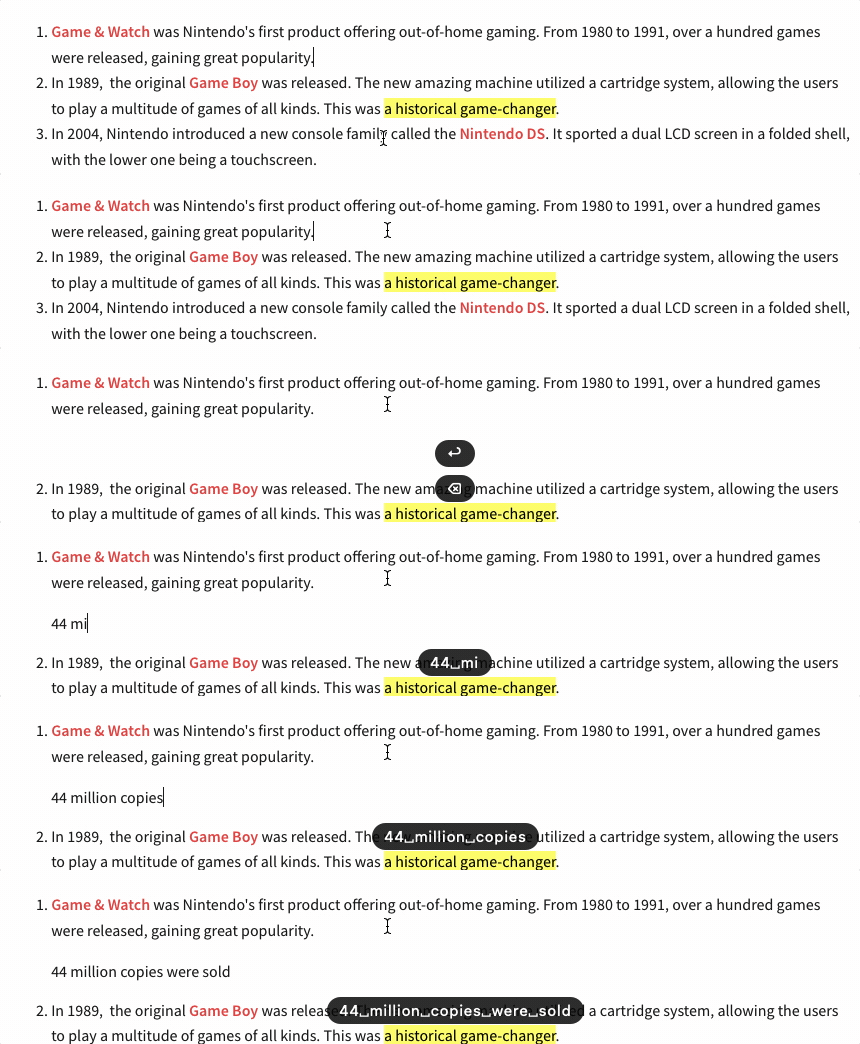
To edit a block inside a list item, press Enter to create a new line and then Backspace to remove the new list item marker. Keep on entering content. Observe this behavior in the screencast below.
Besides controlling text block indentation, the indent  and outdent
  buttons allow for indenting list items (nesting them).
This mechanism is transparent to the user. From the code perspective, the buttons are implemented by the Indent plugin. Neither these buttons nor the respective commands implement any functionality by default.
The target behavior comes from two other plugins:
IndentBlock– The indent block feature controls the indentation of elements such as paragraphs and headings.List– The list feature implements the indentation (nesting) of lists.
This means that if you want to allow indenting lists only, you can do that by loading just the Indent and List plugins.
When both the IndentBlock and List plugins are loaded, the editor also supports visual block indentation of list containers (<ol>, <ul>) and list items (<li>), applying a margin-left style or CSS class. Refer to the Indenting lists section in the block indentation guide for details on the behavior, UX, and configuration.
If you want the full behavior – nesting list items, block indentation of paragraphs, and visual block indentation of lists – you need to load all three plugins: Indent, IndentBlock, and List.
By default, each nested list item can only be one level deeper than its parent. The config.list.enableSkipLevelLists option removes this restriction and allows list items to be indented by more than one level at a time. This matches the behavior of word processors such as Microsoft Word and Google Docs, providing a familiar editing experience.
import { ClassicEditor, List } from 'ckeditor5';

ClassicEditor
	.create( {
		licenseKey: '<YOUR_LICENSE_KEY>', // Or 'GPL'.
		plugins: [ List, /* ... */ ],
		toolbar: [ 'bulletedList', 'numberedList', /* ... */ ],
		list: {
			enableSkipLevelLists: true
		}
	} )
	.then( /* ... */ )
.catch( /* ... */ );Skip-level lists are not fully compatible with email clients. To represent skipped indentation levels in HTML, the editor inserts placeholder <li> elements with list-style-type: none. Some email clients ignore the inline style and render these placeholders as visible bulleted or numbered items.
If your editor does not need this level of richness – for example in short comment fields or small editing areas – you can scale list items back to a single text-level block. Set the config.list.multiBlock configuration setting to false. Items keep inline formatting like bold or links, but cannot hold paragraphs, tables, or other block elements. This setup is sometimes referred to as “simple lists.”
import { ClassicEditor, List } from 'ckeditor5';

ClassicEditor
	.create( {
		licenseKey: '<YOUR_LICENSE_KEY>', // Or 'GPL'.
		plugins: [ List, /* ... */ ],
		toolbar: [ 'bulletedList', 'numberedList', /* ... */ ],
		list: {
			multiBlock: false // Turn off the multi-block support (enabled by default).
		}
	} )
	.then( /* ... */ )
.catch( /* ... */ );Press Enter to create a new list item. Press Tab to nest the item (in multi-level lists) or indent it (in regular lists). Press Enter to turn an item into a higher level in the list or to remove it completely.
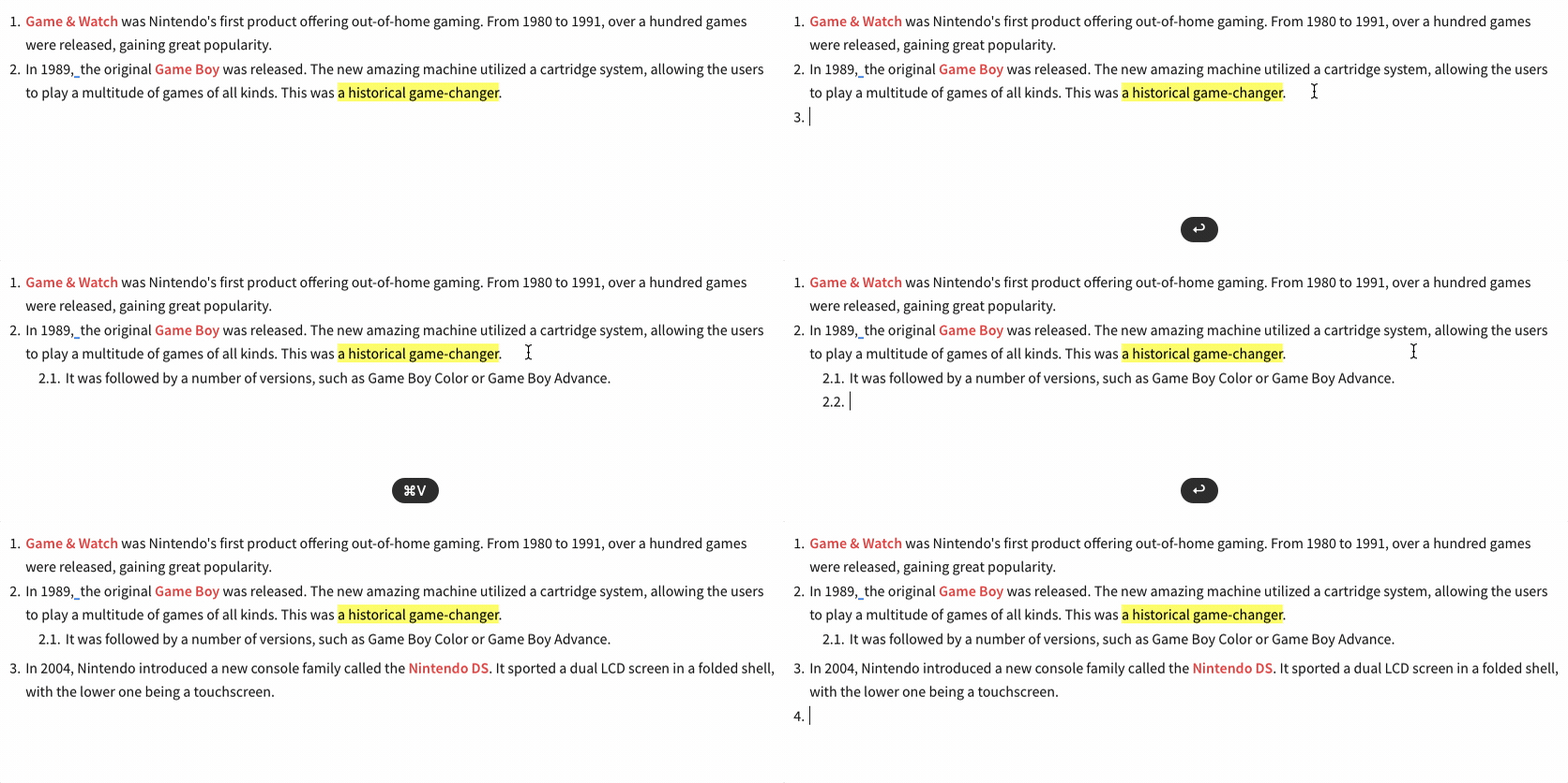
By default, the editor merges two ordered and unordered lists of the same type that are next to each other. This happens to preserve the user intention. Lists that visually appear to be one continuous list should constitute one list even if the user has accidentally created several of them.
Sometimes this can be an undesirable behavior. For example, two adjacent numbered lists, each with two items, will merge into a single list with the numbers 1 through 4.
To prevent this behavior, enable the AdjacentListsSupport plugin.
import { ClassicEditor, List, AdjacentListsSupport } from 'ckeditor5';

ClassicEditor
	.create( {
		licenseKey: '<YOUR_LICENSE_KEY>', // Or 'GPL'.
		plugins: [ List, AdjacentListsSupport, /* ... */ ]
	} )
	.then( /* ... */ )
.catch( /* ... */ );This feature only works for pasted contents or on data load, it does not support entering adjacent lists via the editor UI. Find more about it in the #changes-to-list-merging section of Update to 41.x guide in the updating from older versions guide. If you are interested in this functionality, refer to this issue on GitHub.