
Editing Toolkit with scripts and external versions
Use the Editing Toolkit to review changes produced by a script, a content-processing job, or an updated Word file. It compares the revised HTML with a snapshot of the document and presents the differences for users to review in CKEditor 5.
The demo offers two actions without an LLM:
- Update terminology – A browser script renames the help desk and onboarding buddy in the document text.
- Compare with Word file – The demo loads a prepared Word version, converts it through the Import from Word REST API, and compares the HTML with the current document.
Review the differences in the panel, then apply them directly or as Track Changes suggestions. Reset the demo to try the other action.
View the script and Word file
| Replace | With |
|---|---|
| IT helpdesk | Service Desk |
| onboarding buddy | onboarding mentor |
const snapshot = documentCompare.makeSnapshot();
const processed = snapshot.content.main
	.replaceAll( 'IT helpdesk', 'Service Desk' )
	.replaceAll( 'onboarding buddy', 'onboarding mentor' );
const changes = documentCompare.computeChanges( snapshot, processed );- Typos fixed in the introduction and the first section.
- "IT helpdesk" renamed to "Service Desk".
- "Your first three days" retitled to "Your first week", with a Day 4 item added.
Onboarding Guide: First Week Checklist
Welcome to the team! This guide walk you through you're first week so you know what to expect and who to ask when something is unclear. Please read it before you're first day, it take about ten minutes.
Before you start
You will recieve an email from IT with your account details on the day before you start. Make sure that you can login to the laptop and the VPN, if something dont work, contact the IT helpdesk and they will help you with it as soon as they can.
Your first three days
- Day 1: meet your manager, get a tour of the office and set up your workstation.
- Day 2: security training in the morning (it is mandatory) and a team lunch in the afternoon.
- Day 3: shadow a colleague from your team and go threw the current projects with them.
Useful contacts
For questions about benefits and payroll, reach out to HR. For access, hardware and software, IT helpdesk is who you should ask. Your onboarding buddy is the person to ask for everything else, including the things that you think are to small to ask about.
Choose an action above, then review the proposed changes here.
- Run find-and-replace operations, terminology changes, product renames, or other standardized content processing in a browser script or backend job, then let users review the results.
- Compare an external version with the current document, even if the author did not track their edits. The version can be an updated Word copy converted with the Import from Word REST API or content from another source converted to HTML.
- Regenerate content from a data source and let the people working on the document review the resulting edits.
The diagram shows the script workflow:
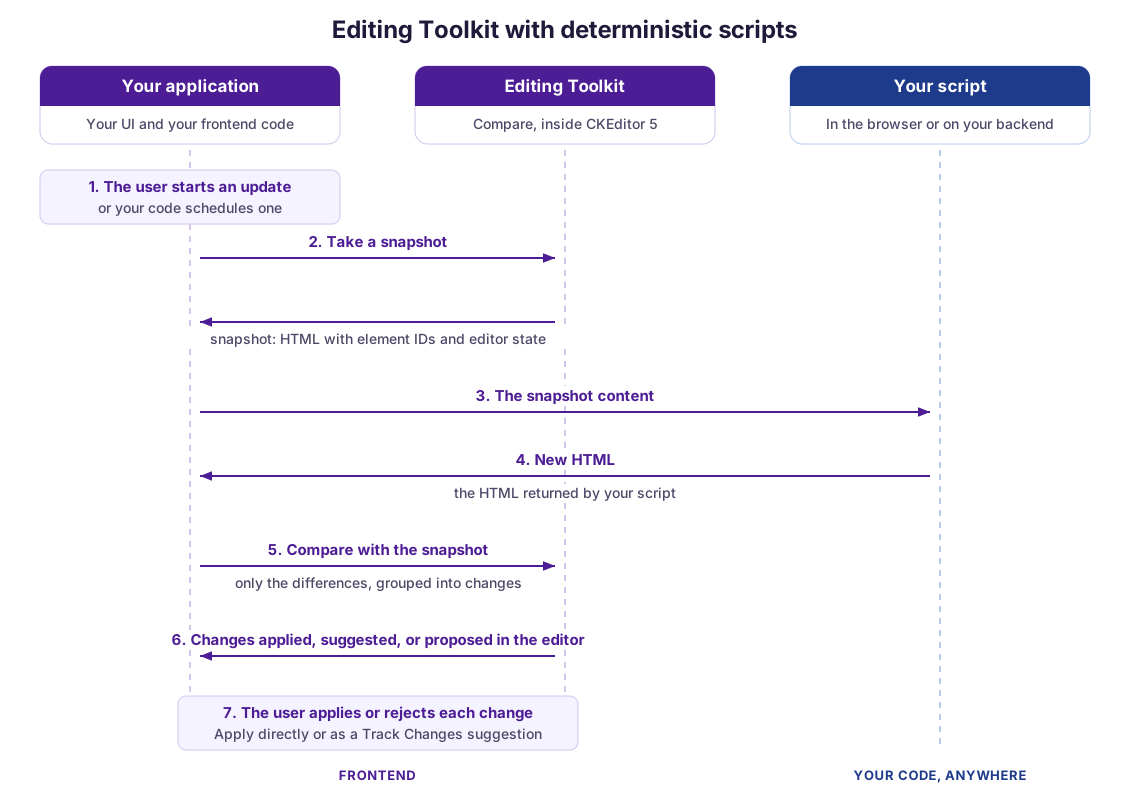
- The user picks an action in your application, or your code schedules one.
- Your application takes a snapshot through the Editing Toolkit. Keep the element IDs when transforming its HTML so the comparison can match elements across versions.
- Your script receives the snapshot content.
- The script returns revised HTML.
- The toolkit compares the result with the original snapshot and groups the differences into reviewable changes.
- Your application applies the changes directly, records them as Track Changes suggestions, or presents them for review as in the demo.
- The user applies or rejects each proposed change.
For a Word file or another external version, convert it to HTML first, then take a fresh snapshot with makeSnapshot( { useDataIds: false } ) immediately before comparison. Without element IDs, Compare matches elements by content similarity. Conversion can introduce formatting differences, so review the result in the editor configuration your application uses.
If the Word file already contains tracked changes, use Import from Word with Track Changes enabled instead. It imports them as suggestions with the authors’ names.
- The
DocumentCompareplugin with a license key, plusProposedChangesfor the Proposed changes UI. See the Comparing documents and Proposing changes guides for setup. - For Word files, access to the Import from Word converter and a token authorized to use it.
- The Track Changes integration if changes should be recorded as suggestions.