
Comparing documents
Use the DocumentCompare plugin of the Editing Toolkit to update the editor content with HTML produced outside the editor, for example by an AI agent, a script, or a converted Word file. It compares that HTML with the current document and applies only the differences, as granular changes. Unlike editor.setData(), it does not replace the whole document, so comments, Track Changes, revision history, and real-time collaboration keep working.
You can apply the changes directly or as Track Changes suggestions. To let users review the changes before applying them, pair it with the Proposed changes UI.
The left editor holds a new version of the policy shown on the right, written by an AI agent. It rewrites sentences, bolds key terms, changes a table cell, and adds a table row, a list item, and a paragraph. Edit it further if you like. Choose Apply as suggestions to record the differences as Track Changes suggestions in the original document on the right. Reset the demo to start over.
New version Created by an agent, a deterministic script, or another source. You can edit it.
Remote work policy
Employees can work remotely up to three days per week. Agree on your remote days with your team lead in advance.
Equipment
The company provides the following equipment. Request it from the IT service desk.
| Item | Who gets it |
|---|---|
| Laptop | Every employee |
| Headset | Every employee |
| Monitor | Every employee |
| Docking station | Hybrid teams |
Working hours
- Core hours are from 10:00 to 15:00.
- Stay available on chat during core hours.
- Mark your remote days in the shared team calendar.
Security
Always connect through the VPN when you access internal systems.
Do not use public Wi-Fi networks without the VPN.
Original document Receives the changes.
Remote work policy
Employees can work remotely up to two days per week. Agree on your remote days with your team lead in advance.
Equipment
The company provides the following equipment. Request it from the office manager.
| Item | Who gets it |
|---|---|
| Laptop | Every employee |
| Headset | Every employee |
| Monitor | On request |
Working hours
- Core hours are from 10:00 to 15:00.
- Stay available on chat during core hours.
Security
Always connect through the VPN when you access internal systems.
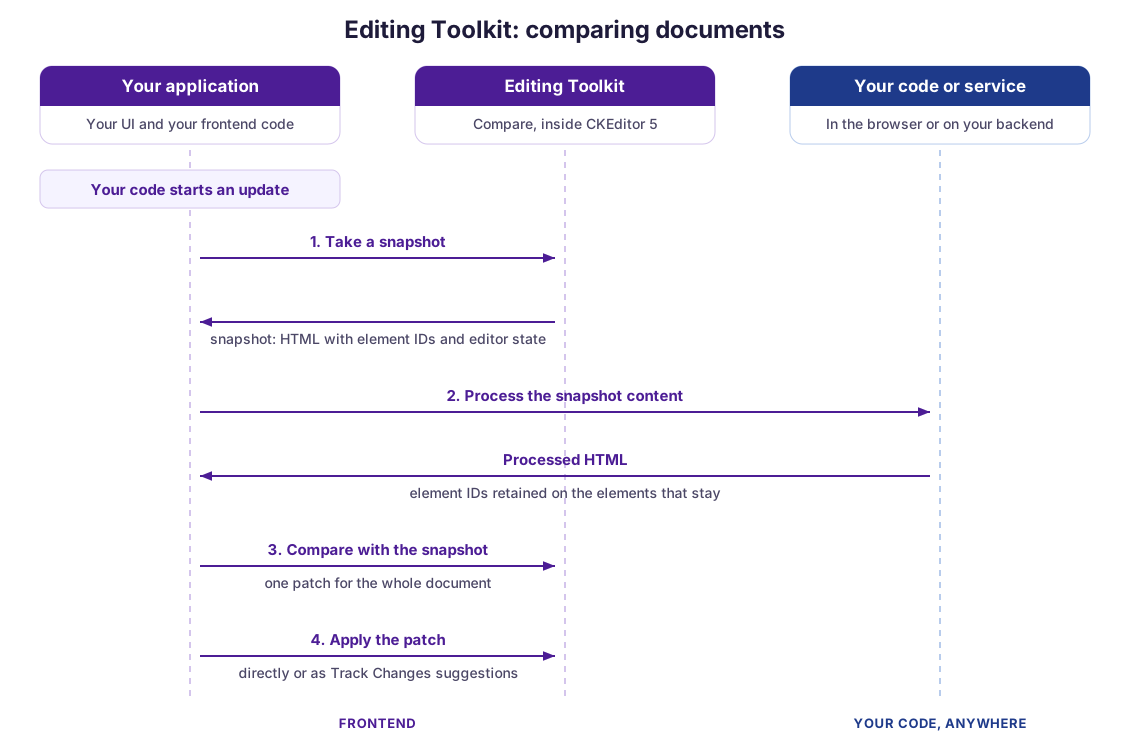
Comparing documents takes four steps:
- Snapshot –
makeSnapshot()captures the current document. See What a snapshot holds. - Process – Your code or service transforms that HTML. It can be a script, a backend service, or CKEditor AI, as described in the Using with CKEditor AI guide. For your own AI agents, use Coauthor, which helps them produce content the editor accepts.
- Compare –
computePatch()compares the processed HTML with the snapshot and returns a patch for the whole document. - Apply –
applyPatch()applies the patch, directly or as suggestions.
Before applying anything, DocumentCompare validates the patch against a copy of the document. If validation fails, it throws an error and leaves the document unchanged.
After installing the editor, add the DocumentCompare plugin to your plugin list:
import { ClassicEditor } from 'ckeditor5';
import { DocumentCompare } from 'ckeditor5-premium-features';

ClassicEditor
	.create( {
		attachTo: document.querySelector( '#editor' ),
		licenseKey: '<YOUR_LICENSE_KEY>',
		plugins: [ DocumentCompare, /* ... */ ]
	} )
	.then( /* ... */ )
.catch( /* ... */ );To apply changes directly, you do not need Track Changes or an AI service. To apply changes as suggestions, also load the TrackChanges plugin and complete its setup, including registering the current user. Loading the plugin alone is not enough. See the Track Changes integration guide for details.
DocumentCompare does not require config.collaboration.channelId. If it is set, DocumentCompare uses it to check that a patch is applied to the document it was computed for. Setting it does not enable Cloud Services or real-time collaboration. The Proposed changes UI requires it.
A snapshot is a plain object that records the document at one point in time:
content– The HTML of each editor root, keyed by root name. In a single-root editor, it holds only themainroot. This is what your processor receives and changes.editorConfig– The features the editor has loaded and their configuration, such as the allowed heading levels or font sizes, plus the CKEditor 5 version. Pass it to your AI model or agent together with the content, so it produces only content the editor can hold. To check the output against the real editor instead of a description, use Coauthor.- The document version and the editing session in which the snapshot was taken.
DocumentCompareuses them to merge the result with edits made in the meantime. See Editing while the content is processed.
The snapshot is safe to serialize. You can send it to a backend, store it, and pass it back to computePatch() when the result is ready.
The following example runs the four steps one by one. Replace externalDataProcessing() with your own processing:
const documentCompare = editor.plugins.get( 'DocumentCompare' );

// 1. Capture the document.
const snapshot = documentCompare.makeSnapshot();

// 2. Process the content.
const processed = await externalDataProcessing( snapshot.content );

// 3. Compare the result with the snapshot.
const patch = documentCompare.computePatch( snapshot, processed );

// 4. Apply the differences.
try {
	documentCompare.applyPatch( patch );
} catch ( error ) {
	// See the "Handling errors" section.
	console.error( error );
}When you want to apply the result immediately, process() runs all four steps in one call. It passes the snapshot to your callback and applies the returned data:
await documentCompare.process( async snapshot => externalDataProcessing( snapshot.content ) );Processing may take a while, for example when it calls an AI service. Users can keep editing in the meantime. Keep the original snapshot while the processor works, then compare its result with that snapshot. When the changes are applied, DocumentCompare merges them with all edits made after the snapshot, including edits of other users in real-time collaboration.
The changes are adjusted to these edits in the same way as real-time collaboration merges edits of different users. For example, if a user edits another part of the paragraph that the patch changes, both changes are kept.
A patch can only be applied to the same document, in the same editing session in which the snapshot was taken:
- Without real-time collaboration, the editing session lasts as long as the editor instance. Reloading the page or creating the editor again starts a new session.
- With real-time collaboration, the editing session is the real-time collaboration session.
There is no time limit. A long-running job can apply its result as long as the editing session continues. If the session has ended, applying the patch throws the documentcompare-session-mismatch error.
By default, the snapshot HTML has a data-id attribute on every structural element, such as a paragraph, heading, or list item. The comparison uses these IDs to pair the elements of the snapshot and the processed content. This gives the best results, so use this mode whenever your processing can keep the IDs.
Your processor must follow these rules:
- Keep the
data-idof every element that stays in the document, even if you change its content. - Do not add a
data-idto new elements. - Do not reuse the ID of an existing element for a different element.
For example, a processor rewrites the second paragraph and adds a third one:
<!-- Snapshot. -->
<h2 data-id="e1">Onboarding</h2>
<p data-id="e2">Contact the IT helpdesk on your first day.</p>

<!-- Processed content. -->
<h2 data-id="e1">Onboarding</h2>
<p data-id="e2">Contact the Service Desk on your first day.</p>
<p>Your manager will introduce you to the team.</p>The actual ID values are generated, so always take them from the snapshot.
If your content already uses the data-id attribute, it may conflict with DocumentCompare. See the Conflicts with the data-id attribute section of the CKEditor AI overview for details.
If the processor removes or changes the ID of an element it keeps, the comparison cannot pair the element with its original. It treats it as a removed element and a new one, so the change covers the whole element instead of only the edited text. If your processor cannot keep the IDs reliably, compare the content without them, as described in the next section.
Use this mode when the new content cannot carry the IDs. Typical cases:
- Processing through another format – Your processor works on Markdown or plain text instead of HTML, for example an AI service that takes Markdown as input. Converting to Markdown and back drops the attributes.
- Comparing an external version – The new content was not created from the snapshot, so it has no IDs at all. For example, someone edited a copy of the document in Microsoft Word, and you converted it to HTML with the Import from Word REST API. The Scripts and external versions guide shows this case in a demo.
- Unreliable processors – A tool in your pipeline rewrites the HTML and does not always keep the attributes.
In these cases, take the snapshot with the useDataIds option set to false. The comparison then pairs the elements by how similar their content is:
const snapshot = documentCompare.makeSnapshot( { useDataIds: false } );
const processed = await externalDataProcessing( snapshot.content );

const patch = documentCompare.computePatch( snapshot, processed );

documentCompare.applyPatch( patch );To compare an external version, you do not process the snapshot content at all. Take the snapshot immediately before the comparison, so it matches the current document, and compare it with the converted HTML:
const snapshot = documentCompare.makeSnapshot( { useDataIds: false } );
const patch = documentCompare.computePatch( snapshot, importedHtml, { asSuggestions: true } );

documentCompare.applyPatch( patch );The process() method accepts the same useDataIds option.
Pairing by content is slower and less precise than pairing by IDs. Keep the IDs whenever your processing allows it.
By default, DocumentCompare applies changes directly to the content. To apply them as Track Changes suggestions instead, pass the asSuggestions option to computePatch() or process():
const patch = documentCompare.computePatch( snapshot, processed, {
	asSuggestions: true
} );

documentCompare.applyPatch( patch );Applying changes as suggestions is not the same as reviewing them. Suggestions are already in the document, and users accept or reject them with the Track Changes UI. To let users decide before anything reaches the document, use the Proposed changes UI.
If the processed content comes from AI, set the aiSource option of computePatch() or process() to a value that identifies your AI feature, for example 'myAgent'. The resulting suggestions and revisions are then marked as made by AI, as configured by config.trackChanges.showAISource and config.revisionHistory.showAISource:
const patch = documentCompare.computePatch( snapshot, processed, {
	asSuggestions: true,
	aiSource: 'myAgent'
} );

documentCompare.applyPatch( patch );The aiSource option only labels the changes. It does not change who the suggestions belong to. Suggestions are always created by the current user, as defined in the Track Changes integration. In the browser, this is the person who runs the comparison.
A multi-root editor can have inline roots, which accept only text and inline formatting, for example for a document title. The content of an inline root has no block element, so the snapshot wraps it in an artificial <p data-id="..."> element. The wrapper keeps its data-id even when the snapshot is taken with useDataIds: false. Process only the inline content inside the wrapper, without adding paragraphs, lists, or other blocks.
The following errors can occur when you apply a patch. applyPatch() checks for them before it changes anything, so the document stays unchanged.
documentcompare-channel-mismatch– The patch is applied to a different document than the one the snapshot was taken from. Make sure you apply it in the right editor.documentcompare-session-mismatch– The snapshot was taken in a previous editing session, for example before a page reload. Take a new snapshot and process the content again.documentcompare-invalid-patch– The patch cannot be applied to the current document. Take a new snapshot and process the content again.documentcompare-unsupported-patch– The patch contains operations thatcomputePatch()never produces. Apply only patches returned bycomputePatch().documentcompare-no-track-changes– Changes are applied as suggestions, but the editor does not load Track Changes. Set up Track Changes or apply the changes directly.
If the patch passes validation but applying it to the document fails, applyPatch() throws the documentcompare-apply-failed error. In this case, the patch might be applied only partially.
- Proposing changes – Present the computed changes to users and let them accept or reject each one.
- Editing Toolkit overview – Learn about all components of the toolkit.
- Track Changes – Required only when changes are applied as suggestions.
The DocumentCompare plugin provides the following methods:
makeSnapshot()– Captures the current document.computePatch()– Compares the processed content with a snapshot and returns a patch for the whole document.applyPatch()– Applies a patch to the document.process()– Runs the whole pipeline in one call.
The plugin uses the following types:
DocumentCompareSnapshot– The captured document.DocumentComparePatch– The differences between a snapshot and the processed content.DocumentCompareSnapshotOptions,DocumentCompareComputePatchOptions, andDocumentCompareProcessOptions– The options of the methods above.