Installation
After installing the editor, add the Table plugin to your plugin list and toolbar configuration:
import { ClassicEditor, Table, TableToolbar } from 'ckeditor5';

ClassicEditor
	.create( {
		licenseKey: '<YOUR_LICENSE_KEY>', // Or 'GPL'.
		plugins: [ Table, TableToolbar, Bold, /* ... */ ],
		toolbar: [ 'insertTable', /* ... */ ],
		table: {
			// Configuration.
		}
	} )
	.then( /* ... */ )
.catch( /* ... */ );Easily control your tables employing a dedicated toolbar.
ClassicEditor
	.create( {
		// ... Other configuration options ...
		table: {
			contentToolbar: [ 'tableColumn', 'tableRow', 'mergeTableCells' ]
		}
	} )
	.then( /* ... */ )
.catch( /* ... */ );To make every inserted table have n number of rows and columns as table headers by default, set an optional table configuration property defaultHeadings as follows:
ClassicEditor
	.create( {
		// ... Other configuration options ...
		table: {
			defaultHeadings: { rows: 1, columns: 1 }
		}
	} )
	.then( /* ... */ )
.catch( /* ... */ );Check the table with default headers applied to both the first row and the first column in the demo below. Click on the table and use the column properties  or the row properties
  UI button to toggle the respective headers.
Financial report
Main product line for Q4.
|
|
Sales |
Income |
Revenue |
|---|---|---|---|
|
Walker |
1050 |
$104.000 |
15% |
|
Stroller |
24 |
$12.000 |
10% |
|
Walker 3 |
980 |
$97.000 |
15% |
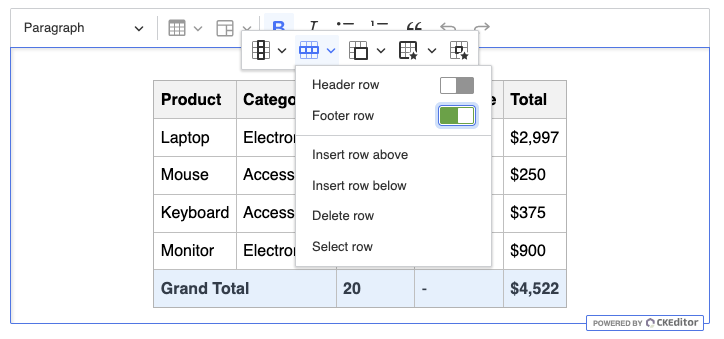
To enable table footers, set the optional table configuration property enableFooters as follows:
ClassicEditor
	.create( {
		// ... Other configuration options ...
		table: {
			enableFooters: true
		}
	} )
	.then( /* ... */ )
.catch( /* ... */ );The option also enables UI for table footers. You can set a footer row similarly to the header row by using the switch button in the table toolbar.
By default, the editor allows nesting a table inside another table’s cell.
To disallow nesting tables, you need to register an additional schema rule. It needs to be added before the data is loaded into the editor. Due to that, it is best to implement it as a plugin:
function DisallowNestingTables( editor ) {
	editor.model.schema.addChildCheck( ( context, childDefinition ) => {
		if ( childDefinition.name == 'table' && Array.from( context.getNames() ).includes( 'table' ) ) {
			return false;
		}
	} );
}

// Pass it via config.extraPlugins or config.plugins:

ClassicEditor
	.create( {
		// ... Other configuration options ...
		extraPlugins: [ DisallowNestingTables ],
	} )
	.then( /* ... */ )
.catch( /* ... */ );Check the step-by-step tutorial if you need more information about the technical side of this solution.
We recommend using the official CKEditor 5 inspector for development and debugging. It will give you tons of useful information about the state of the editor, such as internal data structures, selection, commands, and much more.
The Table plugins register the following UI components:
| Component name | Registered by |
|---|---|
The 'insertTable' dropdown |
Table |
The 'tableColumn' dropdown |
|
The 'tableRow' dropdown |
|
The 'mergeTableCells' split button |
The TableToolbar plugin introduces two balloon toolbars for tables.
- The content toolbar shows up when a table cell is selected and it is anchored to the table. It is possible to configure its content. Normally, the toolbar contains the table-related tools such as
'tableColumn'and'tableRow'dropdowns and'mergeTableCells'split button. - The table toolbar shows up when the whole table is selected, for instance using the widget handler. It is possible to configure its content.
| Command name | Command class | Belongs to (top–level plugin) |
|---|---|---|
'insertTable' |
InsertTableCommand |
Table |
'insertTableColumnLeft' |
InsertColumnCommand |
|
'insertTableColumnRight' |
InsertColumnCommand |
|
'insertTableRowAbove' |
InsertRowCommand |
|
'insertTableRowBelow' |
InsertRowCommand |
|
'removeTableColumn' |
RemoveColumnCommand |
|
'removeTableRow' |
RemoveRowCommand |
|
'selectTableColumn' |
SelectColumnCommand |
|
'selectTableRow' |
SelectRowCommand |
|
'setTableColumnHeader' |
SetHeaderColumnCommand |
|
'setTableRowHeader' |
SetHeaderRowCommand |
|
'mergeTableCellRight' |
MergeCellCommand |
|
'mergeTableCellLeft' |
MergeCellCommand |
|
'mergeTableCellUp' |
MergeCellCommand |
|
'mergeTableCellDown' |
MergeCellCommand |
|
'splitTableCellVertically' |
SplitCellCommand |
|
'splitTableCellHorizontally' |
SplitCellCommand |
Table alignment in the editor’s output uses CSS classes by default. But, you can control it with the table.tableProperties.alignment.useInlineStyles property.
- When the property is
false(default), output contains CSS classes. - When the property is
true, output contains inline styles.
The option applies to all five alignment options. Learn more about them in the Table alignment section.
We recommend using the official CKEditor 5 inspector for development and debugging. It will give you tons of useful information about the state of the editor, such as internal data structures, selection, commands, and much more.