CKEditor AI On-Premises diagnostics
The AI diagnostics view in the Management Panel shows what CKEditor AI sent to the AI model and what it got back. It is built into CKEditor AI On-Premises and works out of the box. You get insight into every AI request without setting up and maintaining an OTLP collector or a separate observability tool.
Use it to investigate a problem yourself, or export the records and share them with the CKEditor Customer Success Team. With the same data at hand, we can reproduce and resolve issues faster and keep improving CKEditor AI.
Every AI request is recorded: chat messages, actions, reviews, and document processing. For each request you can see the prompt, the response, the model, token usage, and timing. For chat messages you can also open the exact version of the document the model worked on.
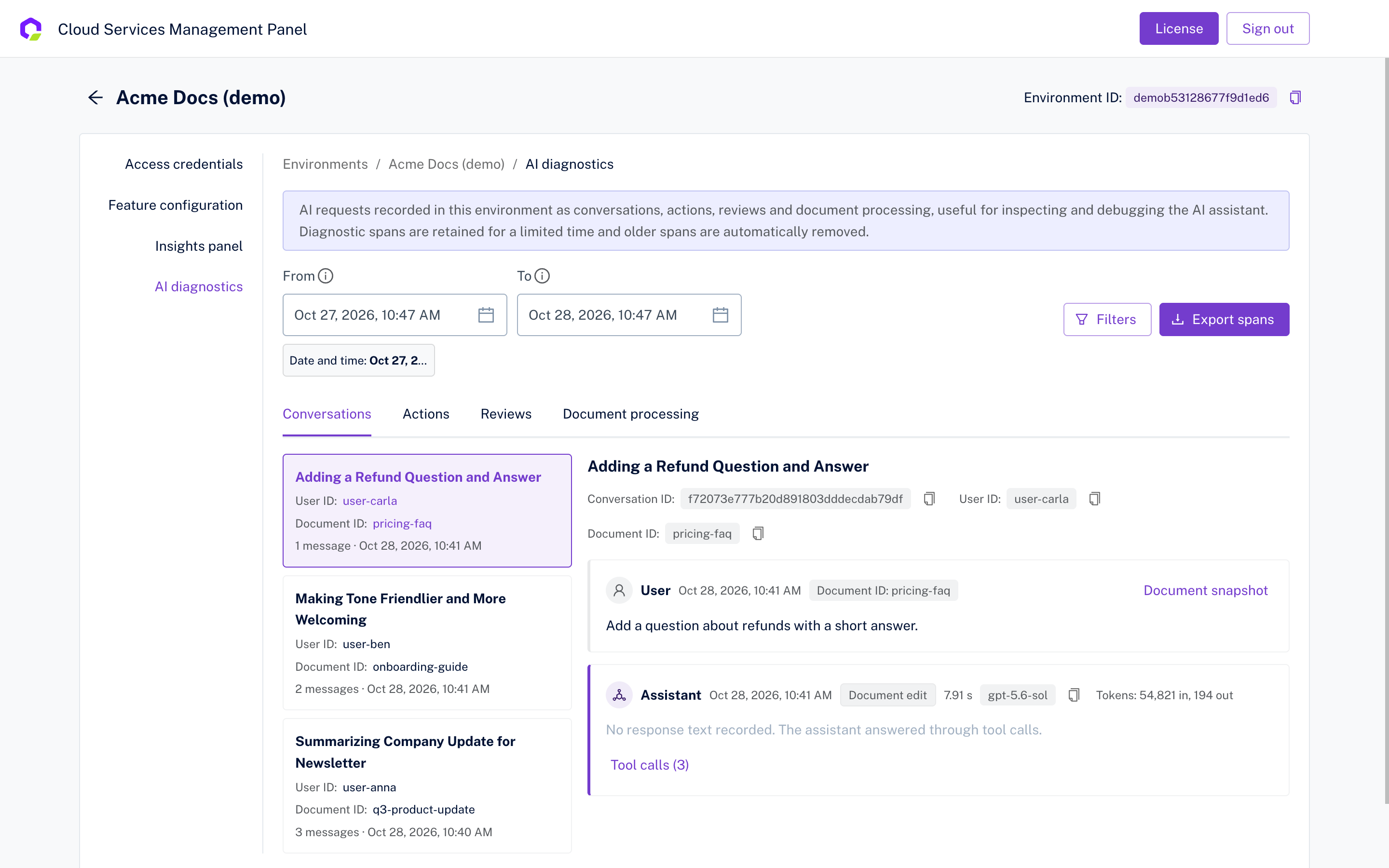
- A user reports a wrong or unexpected answer – find the conversation by user or document, read the messages the model received, and check which version of the document it was given.
- A response was slow or failed – compare the duration, the model, and the token usage of the requests around the time of the problem.
- You need help from CKEditor support – export the records for a time range, a user, or a conversation, and send the file to us. See Sending the records to CKEditor support.
- You want to see how the assistant is used – browse the requests for a feature, for example all reviews from the last day.
AI diagnostics is on by default. Every AI request is recorded in the service database, and you do not need to set up an OTLP collector to collect AI diagnostics data.
To stop recording, set the following option and restart the service:
LLM_TELEMETRY_ENABLED=falseThe same option controls the AI spans sent to your tracing backend and to Langfuse. See Observability.
Records are kept for 30 days and then removed automatically.
Records contain prompts, responses, and document content. They are always stored encrypted. With searchable text on, a plain-text copy of the user’s message and of the response is stored as well. Anyone who can sign in to the Management Panel can read the full content of the records and the related documents.
-
Open the Management Panel, for example
http://localhost:8000/panel, and sign in with the management secret key. -
Open the environment and go to the AI diagnostics tab.
-
Set the time range with From and To.
-
Pick the type of request: Conversations, Actions, Reviews, or Document processing.
-
Narrow the list with Filters:
- User ID – the ID of the user who sent the request.
- Conversation ID – a single conversation.
- Document ID – the document identifier your editor integration sends with the conversation.
- Message contains – text in the user’s message or in the response. This filter is available only when searchable text is on.

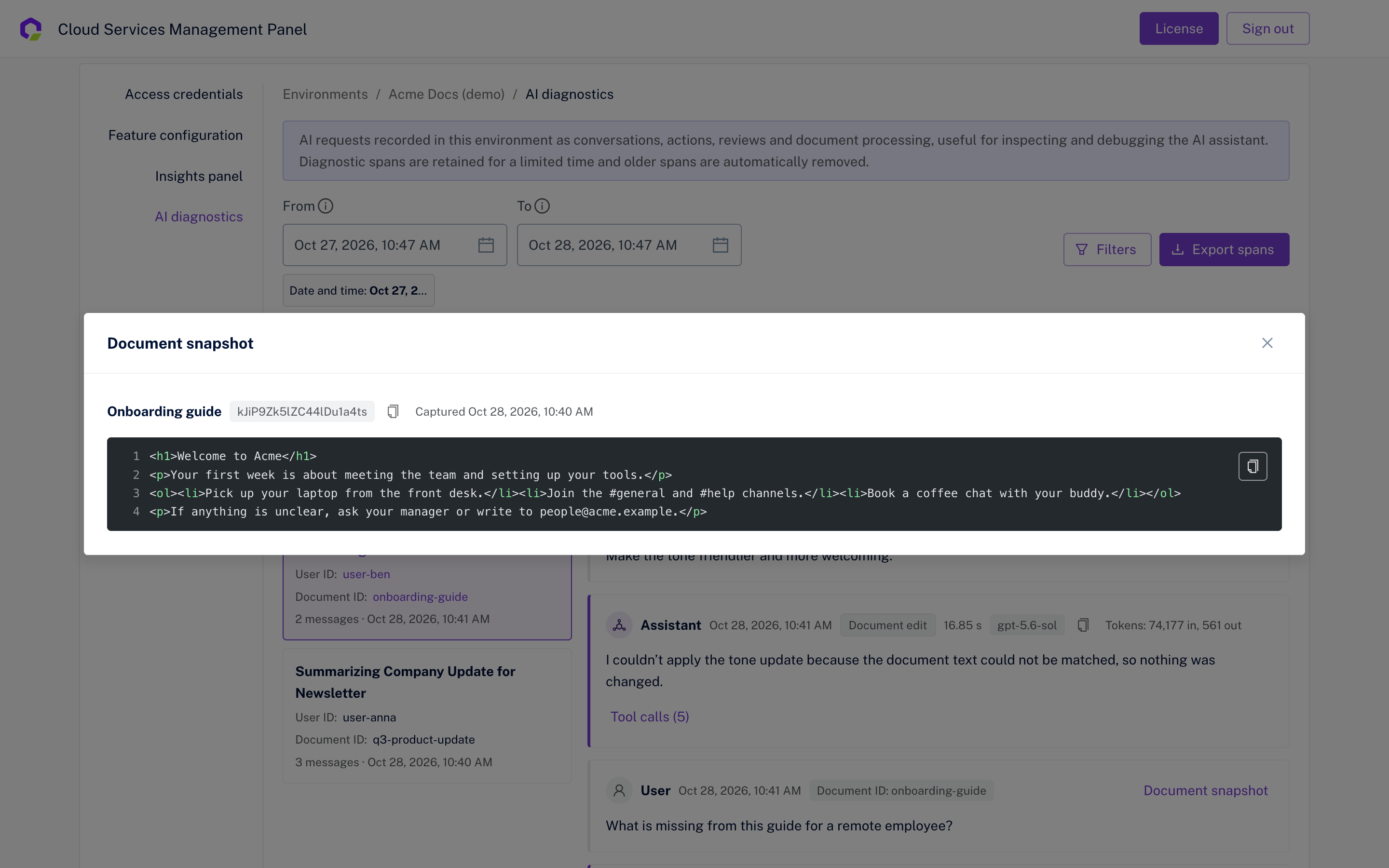
Select a conversation to see its messages. Each assistant message shows the model, the duration, the token usage, and the tool calls it made. A message sent with a document has a Document snapshot button that opens the version of the document the model received. When a message was sent with several documents, the button shows their number.
A user asks the assistant to rename a product everywhere in the document. The assistant reports success, but the old name is still in a table and in the last section.
- In Conversations, filter by the user ID and open the conversation.
- Read the user’s message to see exactly what was asked.
- The assistant message shows Document edit, the model, and the duration. Open Tool calls to see each change the model made.
- Open Document snapshot and look for the places that were not changed:
- If they are in the snapshot, the model received them and skipped them. This is how the model handled the request, not a problem with your integration.
- If they are not in the snapshot, the model never received that part of the document.
- Export the conversation and send it to us. Cases like this help us improve how the assistant handles edits. See Sending the records to CKEditor support.
By default, the text of the records is stored only in encrypted form, and the Message contains filter is not available. To make the text searchable:
- Open the environment and go to the Feature configuration tab.
- Under AI diagnostics, switch Searchable text on.
While the option is on, the text content of a diagnostic span will be stored in a decrypted form:
- The message the user typed. The system prompt, the document, and the attachments are not included.
- The response of the model, or the text of the changes it made to the document.
Anyone with access to the database can read the users’ messages and the model’s responses. Turn the option on only if you accept the risk.
Only requests recorded while the option is on can be searched. Requests recorded earlier stay unsearchable. When you switch the option off, new requests are stored only in encrypted form again. The plain-text copies recorded while it was on are not removed. They stay searchable until the records expire after 30 days.
Click Export spans, then Download spans, to download the records that match the current time range, type of request, and filters as a JSON file. The file covers every matching record, not only the ones loaded in the view. This file can be provided to the CKEditor Customer Success Team in case of reporting issues to speed up the investigation procedure.
The file contains your CKEditor AI On-Premises version, the matching records, and up to 200 of the most recent document snapshots they refer to.
The exported file contains prompts, responses, and document content in plain text. Share it only through a secure channel. Make sure it does not contain any data you wouldn’t like to share.
- Narrow the view to the problem: a time range around the incident, plus the user ID or the conversation ID.
- Click Export spans, then Download spans.
- Open the file and check that it does not contain data you are not allowed to share.
- Contact us and attach the file. In the message, describe what the user did, what they expected, and what happened instead.
- Records are kept for 30 days. The period cannot be changed.
- A record larger than 1 MiB is shown without its content: the prompt, the response, and the document snapshots. Its time, type, and user are still shown.
- Document snapshots are available for conversations only. Actions, reviews, and document processing show the content in the prompt.