How to customize the CKEditor menu bar: 3 approaches with examples
10min read
|To customize the CKEditor menu bar, you have three options: define the entire menu yourself with menuBar.items, inject items into the default menu with menuBar.addItems, or extend the menu from inside a plugin with editor.ui.extendMenuBar(). For most cases where your plugin owns its menu items, use extendMenuBar(). The other two solve specific problems.
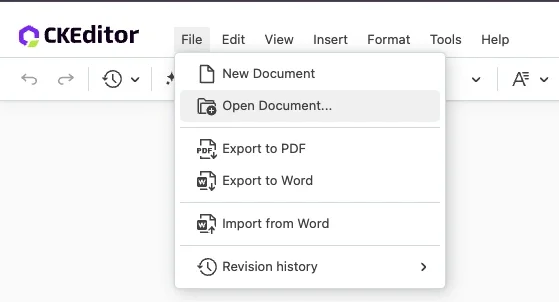
If you’ve ever tried to add a custom item to the menu bar, you’ve probably reached the same crossroads I did. The menu bar docs describe three approaches, but it’s not obvious which one fits your case. This guide walks through all three with a decision rule, then shows the recommended one in action on a real feature: a “Document Management” action in the menu bar with “New Document” and “Open Document…” items.
This is the first of a three-part series that's coming. Part 2 covers the dialogs the menu items open. Part 3 covers the backend that powers them.
What is the CKEditor menu bar?
The CKEditor menu bar is the optional top menu (File, Edit, View, Insert, Format, Tools, Help) that you enable by adding menuBar: { isVisible: true } to your editor configuration. It’s structured as a tree of menus, groups within menus, and item buttons. The official menu bar setup guide documents the default layout and the EditorConfig.menuBar shape.
This applies to Classic and Inline editors only. In other CKEditor types, such as Decoupled, Balloon, or Multi-root, you must insert the menu bar manually using editor.ui.view.menuBarView.element.
What are the three ways to customize the CKEditor menu bar?
For most cases, use Approach 3 (extendMenuBar() in a plugin). For a one-off injection into the default menu, use Approach 2 (menuBar.addItems). For a complete menu replacement, use Approach 1 (menuBar.items).
| Approach | Configuration | When to use it |
|---|---|---|
| Full Definition | menuBar.items | You need complete control and want to specify every menu, group, and item. |
| Declarative Extension | menuBar.addItems / menuBar.removeItems | You're injecting one or two items into the default structure. |
| Programmatic Extension | editor.ui.extendMenuBar()in a plugin | Your plugin owns its menu items and you want it self-contained. |
Combining menuBar.items with extendMenuBar() registers items twice. Pick one.
How do you register a custom menu bar item?
Every menu bar item, regardless of which positioning approach you pick, must be registered via editor.ui.componentFactory.add(). This is the first step whenever you create a CKEditor plugin that exposes UI: the component factory maps a string ID to a view, and the menu bar references that ID by name. Always use MenuBarMenuListItemButtonView, not the regular ButtonView. The menu bar component includes the keyboard navigation and ARIA wiring (accessibility presets) that a plain button doesn’t. If CKEditor UI components and component-factory registration are new to you, it’s the foundation of CKEditor 5 custom plugin development, and the same pattern powers toolbar buttons, balloon items, and dropdowns.
import {
  Plugin, MenuBarMenuListItemButtonView
} from 'ckeditor5';
import {
  IconDocument
} from '@ckeditor/ckeditor5-icons';

editor.ui.componentFactory.add(
  'menuBar:newDocument',
  locale => {
    const button = new MenuBarMenuListItemButtonView( locale );
    button.set({
      label: 'New Document',
      icon: IconDocument,
      withText: true
    });
    button.on( 'execute', () => {
      /* action */
    });
    return button;
} );
Registration is positioning-independent. The next three sections cover where the registered item shows up.
Approach 1: When should you define the full menu bar yourself?
Use Approach 1 when you need to reorganize the entire menu bar, hide whole sections, or guarantee a fixed structure regardless of future CKEditor updates. The trade-off is verbosity (about 160+ lines for a typical full definition) and lost forward compatibility. Any new default menu items added in future CKEditor releases won’t appear automatically.
// full menu bar definition with every menu listed - using the `items` property

menuBar: {
    isVisible: true,
    items: [
        {
            menuId: 'file',
            label: 'File',
            groups: [
                {
                    groupId: 'documentManagement',
                    items: [ 'menuBar:newDocument', 'menuBar:openDocument' ]
                },
                {
                    groupId: 'export',
                    items: [ 'menuBar:exportPdf', 'menuBar:exportWord' ]
                }
                // all other menus must be listed
            ]
        }

    ]
}Approach 2: When should you inject items with addItems?
Use menuBar.addItems when you’re adding one or two items into the default menu structure and you don’t want to redefine everything. The configuration stays short (just a couple of configuration lines), and you keep all the default CKEditor menu items, including new ones in future releases.
// declarative injection into the start of the File menu using addItems property

menuBar: {
    isVisible: true,
    addItems: [
        {
            group: {
                groupId: 'documentManagement',
                items: [ 'menuBar:newDocument', 'menuBar:openDocument' ]
            },
            position: 'start:file'
        }
    ]
}
Position syntax supports 'start', 'end', 'start:GROUP', 'end:GROUP', 'after:ITEM', and 'before:ITEM'. The trade-off: positioning lives in the editor config, while component registration and its logic (which can be seen in the Approach 3 code snippet) live in the plugin file. Two places to look when something breaks.
Approach 3: When should you use extendMenuBar inside a plugin?
Use extendMenuBar() inside a plugin when you want the plugin to be self-contained. Drop it into the plugins array, and registration plus positioning both come along for the ride. This is the approach I picked for the Document Management feature in the demo. The editor config reduces to one line: menuBar: { isVisible: true }.
// a plugin that owns both registration and positioning

export class FileMenuExtension extends Plugin {
    init() {
        const editor = this.editor;

        editor.ui.componentFactory.add(
           'menuBar:newDocument',
            locale => {
                const button = new MenuBarMenuListItemButtonView(locale);
                button.set({
                  label: 'New Document',
                  icon: IconDocument,
                  withText: true
                });
                button.on( 'execute', () => {
                  /* action */
                });
                return button;
        } );

        editor.ui.extendMenuBar({
            group: {
                groupId: 'documentManagement',
                items: [
                  'menuBar:newDocument',
                  'menuBar:openDocument'
                ]
            },
            position: 'start:file'
        } );
    }
}
Now the plugin is portable. Copy the file into another project, add the class to plugins, and it works. This is what makes a CKEditor custom plugin worth the extra structure: registration, positioning, and behavior travel together in one class, so there’s no editor config to keep in sync across projects. It’s also easier to test in isolation. You can instantiate the editor with just this plugin and assert that the menu items appear, without standing up the rest of your application.
How do you wire menu items to your application?
Pass host-app functions through editor.config, not through window globals. Globals can break in server-side rendering, make the plugin hard to test in isolation, and create hidden dependencies that bite later. The pattern below uses an exported constants object so the same string keys are used in both the plugin and the host app.
// Export the plugin's config keys as a constants module.

// src/document-management.js
export const FILE_MENU_EXTENSION = {
    PLUGIN_CONFIG_KEY:           'fileMenuExtension',
    ON_OPEN_DOCUMENT:            'onOpenDocument',
    NEW_DOCUMENT_MENU_ITEM_ID:   'menuBar:newDocument',
    MENU_BAR_GROUP_ID:           'documentManagement'
};
// Host app populates the editor config using those constants.

editorConfig[ FILE_MENU_EXTENSION.PLUGIN_CONFIG_KEY ] = {
    [ FILE_MENU_EXTENSION.ON_OPEN_DOCUMENT ]: ( docId ) => reinitializeEditor( docId )
};// The plugin reads its config and calls the callback.
init() {
const ext = this.editor.config.get( FILE_MENU_EXTENSION.PLUGIN_CONFIG_KEY ) || {};
// later, on button execute:
button.on( 'execute', () => ext[ FILE_MENU_EXTENSION.ON_OPEN_DOCUMENT ]?.( docId ) );
}Voilà. The plugin is decoupled from any specific host-app implementation. All key names live in one exported constants object, so renaming a key never silently breaks the link between the plugin and the host.
Real-world example: building a Document Management menu
In the demo, the File menu needed two items: “New Document” and “Open Document”. Both open dialogs (covered in Part 2), and both eventually reinitialize the editor with a different document ID. The whole feature ships as a single CKEditor custom plugin, which is the structure we’ll build on in the rest of the series. Here’s how the pieces fit:
- The plugin file (
document-management.js) registers both menu items and positions them viaextendMenuBar()at'start:file'.
export class FileMenuExtension extends Plugin {
    init() {
        const editor = this.editor;
        editor.ui.componentFactory.add(...);
        editor.ui.extendMenuBar(...);
    }
}
- The host app (
index.js) passes two callbacks viaeditor.config: one for opening a document, one for fetching the document list.- All key names live in one exported constants object, so a rename never breaks the link between the plugin and the host.
const editorConfig = {
    plugins: [ /* ..., */ FileMenuExtension ],
    menuBar: { isVisible: true },
    [ FILE_MENU_EXTENSION.PLUGIN_CONFIG_KEY ]: {
        [ FILE_MENU_EXTENSION.ON_OPEN_DOCUMENT ]: openDocument,
        [ FILE_MENU_EXTENSION.ON_GET_DOCUMENTS ]: fetchDocuments
    }
};
The menu items are now live. Clicking them runs the host callback, which in this demo opens a dialog. Part 2 of the series covers two ways to build that dialog: with plain HTML, or with CKEditor’s own Dialog plugin.
FAQ
Why must I use MenuBarMenuListItemButtonView instead of ButtonView?
Menu bar items use the specialized MenuBarMenuListItemButtonView, which includes keyboard navigation, aria roles, and submenu handling that the menu bar expects. A regular ButtonView renders but won’t behave correctly in a menu context.
Does extendMenuBar work alongside menuBar.items?
No. If you define menuBar.items and also call editor.ui.extendMenuBar(), your items will be registered twice and appear duplicated in the menu. Pick one approach per project.
Can I remove a default menu item?
Yes, with menuBar.removeItems. For example, menuBar: { removeItems: [ 'menuBar:exportPdf' ] } hides the PDF export item from the File menu without touching anything else.
Where do plugin icons come from?
CKEditor ships icons via @ckeditor/ckeditor5-icons. Import the one you need (for example, IconDocument) and pass it to the button’s icon property. You can also pass a raw SVG string if you need a custom icon.
How do I find the ID of a default menu item to position against?
Default menu item IDs are documented in DefaultMenuBarItems. Common ones include 'menuBar:bold', 'menuBar:exportPdf', and group IDs like 'basicStyles'.
Key takeaways
- Three approaches exist: full definition, declarative
addItems, and programmaticextendMenuBar. PickextendMenuBar()in a plugin when the plugin owns its items. - Always use
MenuBarMenuListItemButtonView(notButtonView) for menu bar items. - Never combine
menuBar.itemswithextendMenuBar(). Items will register twice. - Pass host-app callbacks through
editor.config, not throughwindowglobals. - Export a constants module so plugin keys live in exactly one place.
What’s next
Part 2 of this series covers two ways to build the dialogs your menu items open: a plain-DOM dialog appended to document.body and a CKEditor-native Dialog plugin dialog with observable bindings and accessibility built in. Part 3 covers the backend storage strategies that feed those dialogs.
Tags: