Activate AI translation
Select the target language and trigger translation. The entire document processes in one pass.
WEBINAR:
Less time, fewer tokens, better effects
The official CKEditor support for AI coding agents

Select the target language and trigger translation. The entire document processes in one pass.
Translated text appears in the editor in full, while the original content appears in the sidebar, divided into sections for a side-by-side comparison. Whether you review by going over the original snippets or the translation, corresponding sections are underlined for an easier review.
Once accepted the translation is fully editable. The workflow continues as normal.
Operational Summary – Second Half of 2025
This report summarizes customer support performance during the second half of 2025. It focuses on ticket volumes, response efficiency and common issue categories, based on internal operational data across all support channels.
The information below should be treated as an overview of observed trends rather than a detailed performance evaluation.
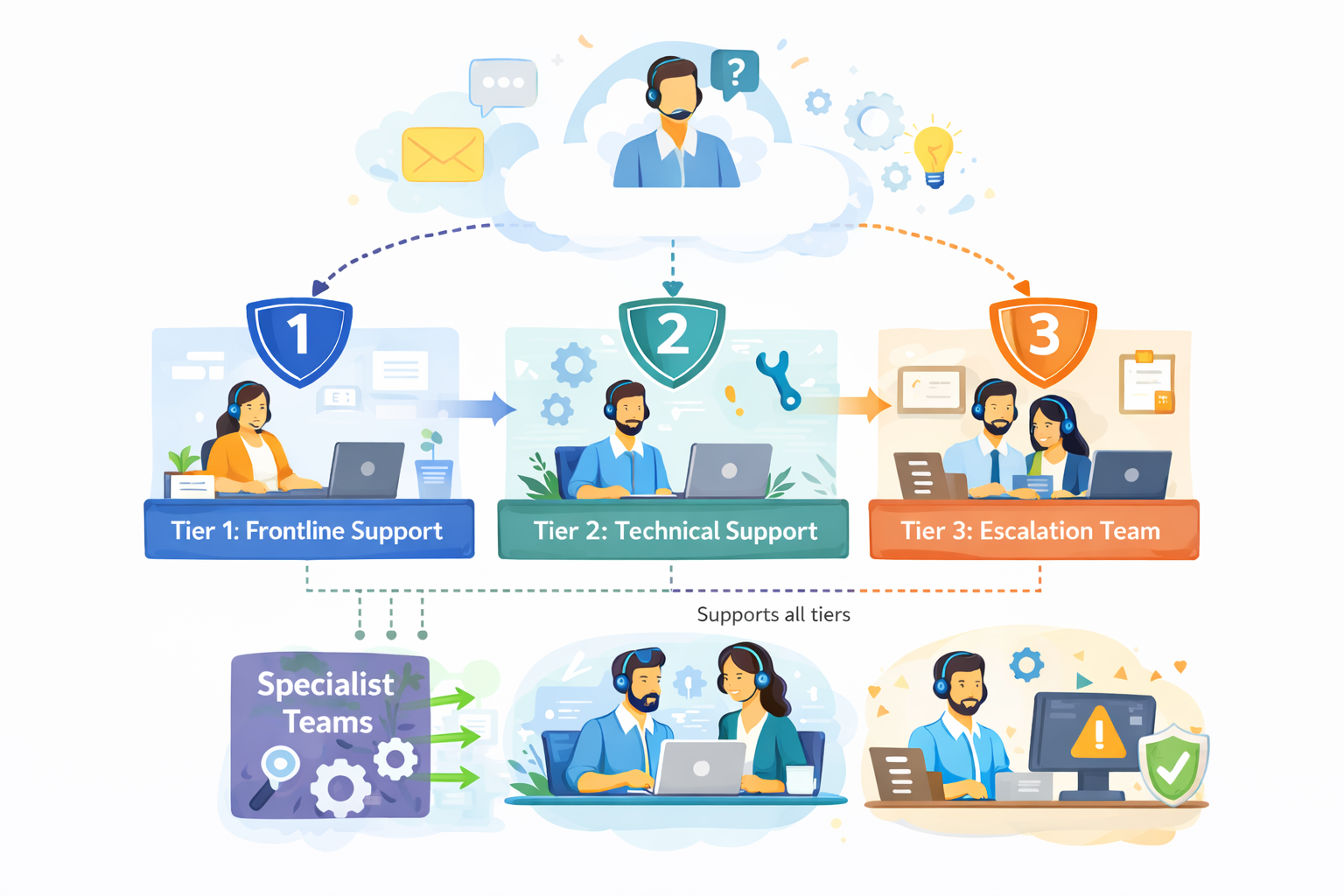
The diagram outlines our internal customer support process, showing how incoming requests are handled across multiple support tiers based on complexity.
Customer inquiries are initially managed by Tier 1: Frontline Support, which is responsible for triage and resolution of common issues. More complex cases are escalated to Tier 2: Technical Support, where deeper technical investigation is performed.
High-impact or unresolved issues are handled by Tier 3: Escalation Team, which coordinates with internal experts as required. Specialist Teams support Tier 2 and Tier 3 by providing domain-specific expertise, while typically remaining non-customer-facing.
The process is designed to allow flexible movement between tiers, supporting efficient resolution and appropriate escalation when needed.
During the reporting period, the support team processed 184,600 tickets, representing an increase of 11% compared to the previous period. Ticket volume peaked in September and gradually stabilized towards the end of the year.
The increase was primarily driven by onboarding-related questions and product configuration requests.
| Channel | Share of Tickets | Change vs. Previous Period | Avg. First Response Time |
|---|---|---|---|
| 54% | -3% | 3.1 hours | |
| Live Chat | 31% | +5% | 1.2 hours |
| In-App Support | 15% | -2% | 2.4 hours |
Email remained the dominant support channel, although live chat usage continued to increase, particularly among larger accounts.
Average response and resolution times showed minor improvement compared to earlier in the year.
More complex cases, especially those related to integrations, required additional follow-up and were not consistently resolved within standard timeframes. While faster response times were generally appreciated, qualitative feedback indicates that communication consistency played an equally important role in overall customer perception.
"Faster responses were helpful, but consistency in follow-up communication had a bigger impact on our overall experience."
— Enterprise customer, post-resolution survey
The most frequently reported issues were:
Billing-related requests declined slightly, while integration-related inquiries increased towards the end of the period.
Customer satisfaction was measured through post-resolution surveys. The overall response rate remained stable throughout the reporting period.
Feedback most often referenced response time and clarity of follow-up communication as areas for improvement, particularly in cases involving multiple handovers or escalations.
Internal review identified several operational areas that may require further attention:
While these issues did not materially impact aggregate performance metrics, they were visible in individual case handling and customer feedback.
"The issue was eventually resolved, although it was not always clear who was responsible for the case during escalation."
— Key account feedback, quarterly review
Overall support performance remained within expected operational ranges. Most key indicators were stable, with moderate improvements observed in response efficiency. At the same time, the data suggests that further improvements in communication clarity and escalation handling could positively impact customer experience in future reporting periods.
Open the demo in fullscreen to comfortably explore the editor and its features.
Read more about the AI capabilities in the documentation.
Check the source code for this demo.
Content teams working across languages spend a disproportionate amount of time on mechanics – copying, pasting, reformatting, reconciling. AI Translate cuts that overhead significantly.


Translate full documents in seconds. Side-by-side comparison where content is divided into sections with highlights for corresponding sections lets you move through the review quickly, segment by segment, without losing track of the original.
Headings stay headings. Tables stay tables. Bullet lists, bold text, inline links – all preserved. AI Translate produces HTML-native output, so the structure of your document is never a casualty of translation.
Translators and editors stay inside the editor. The source content is always visible in the sidebar. There is no need to juggle browser tabs or manage separate files for the original and translated versions.
The translation is a suggestion, not an automatic replacement. You control if it gets accepted and what gets revised. That review step means your team stays accountable for quality without adding manual overhead.
If you are building an application that handles multilingual content, AI Translate integrates without requiring a separate translation service, API key management overhead, or custom UI work.


Add AI Translate to your CKEditor setup the same way you add any other plugin. No external translation service to wire up.
AI Translate is compatible with OpenAI, Anthropic, Google Gemini, and custom LLMs – whichever model you have configured for CKEditor AI. The translation uses the same LLM connection as your other AI features.
The 10 built-in languages cover most use cases. When your application needs more, you configure additional languages directly in the plugin options.
The translated content preserves the document's full HTML structure. No post-processing needed to restore formatting. The editor receives clean, structured output that works with your existing rendering and storage logic.
For applications where data residency matters, CKEditor AI – including AI Translate – is available as an on-premises deployment. Your content never touches external infrastructure unless you choose it.
SOC 2 Type 2 certified, HIPAA and GDPR compliant out of the box.
External translation tools solve a different problem. They work well for bulk document
translation in isolation. They are not built for editors, and the workflow shows.
CKEditor AI Translate | External translation tool | |
|---|---|---|
| Works inside the editor | Available in CKEditor AI Translate | Not available in External translation toolRequires copy-paste |
| Preserves rich text formatting | Available in CKEditor AI TranslateHTML-native | Typically no |
| Review before applying | Available in CKEditor AI TranslateSection-by-section | Not available in External translation tool |
| Original visible during review | Available in CKEditor AI TranslateSidebar comparison | Not available in External translation tool |
| Drop-in for editor integrations | Available in CKEditor AI Translate | Not available in External translation toolSeparate service |
| LLM-powered, configurable | Available in CKEditor AI TranslateMultiple LLM providers | Typically fixed model |
| On-premises option | Available in CKEditor AI Translate | Rarely |
| Context-aware translation | Available in CKEditor AI TranslateFull document context | Varies |
The core difference is integration. CKEditor AI Translate is not a translation tool you connect to an editor. For teams building applications where content is created and translated in the same environment and where formatting integrity is non-negotiable.
You can use AI Translate alongside AI Chat for a complete in-editor AI writing experience: draft, refine, and translate without ever leaving the editor.
CKEditor AI Translate is a built-in translation feature that lets you translate your entire document directly inside the editor. The translation is a suggestion you can review section by section before applying it. No copy-pasting, no external tools, no context switching.
Copy linkLink copiedAI Translate ships with 10 built-in languages: English, Spanish, French, German, Chinese (Simplified), Japanese, Russian, Portuguese, Korean, and Italian. You can configure additional languages to match your localization workflow.
Copy linkLink copiedYes. AI Translate produces HTML-native output, which means headings, lists, tables, bold text, links, and every other formatting element survive the translation intact.
Copy linkLink copiedTranslated content appears in the document as a suggestion, while the original content stays visible in the sidebar, for side-by-side comparison. You review the translation section by section, hovering over a section in the translation or the original content will highlight the corresponding section. By accepting, you apply the full translation in one step – nothing replaces your original content until you do.
Copy linkLink copiedAI Translate is a full-document translation mode. To translate a smaller selection – a heading, a sentence, or a snippet – use the Translate action in AI Quick Actions instead.
Copy linkLink copiedYes. CKEditor AI, including AI Translate, is available as an on-premises deployment for teams that require full data sovereignty. It is also SOC 2 Type 2 certified and HIPAA/GDPR compliant.
Copy linkLink copiedBoth translate content inside the editor, but they work at different scales.
AI Translate is a dedicated translation mode for the entire document. It processes the whole document in one pass, presents the result in the editor with the original content visible in the sidebar for side-by-side comparison, and ships with 10 built-in languages plus the ability to add additional ones. It's built for localizing a full document with structured review.
Translate in AI Quick Actions is a one-click action on the text you've selected. It covers seven languages – English, Chinese, French, German, Italian, Portuguese, and Russian – and returns the result inline to accept, retry, or reject. It's built for quick, localized fixes like a heading, a sentence, or a snippet.
Reach for AI Translate when you're localizing a full document. Use the Quick Action when you need to translate a small piece without leaving your flow.
Copy linkLink copied